

How to Add Page Numbers to a PDF
Page numbers make a long document easier to navigate, easier to cite, and easier to reassemble if printed pages get shuffled. Here's exactly how to add them — including which pages to skip and where the numbers should sit. With ItsaPDF, the file is processed locally in your browser and no account is required.
Why page numbers matter
A numbered document is simpler to reference in conversation or email — "see page 12" only works if page 12 actually says so. It also helps if a printed copy gets dropped: numbered pages are far easier to put back in order than blank ones. For reports, theses, contracts, and anything headed to a printer or a reviewer, page numbers are one of those small details that make a document look finished rather than thrown together.
What you can control before numbering
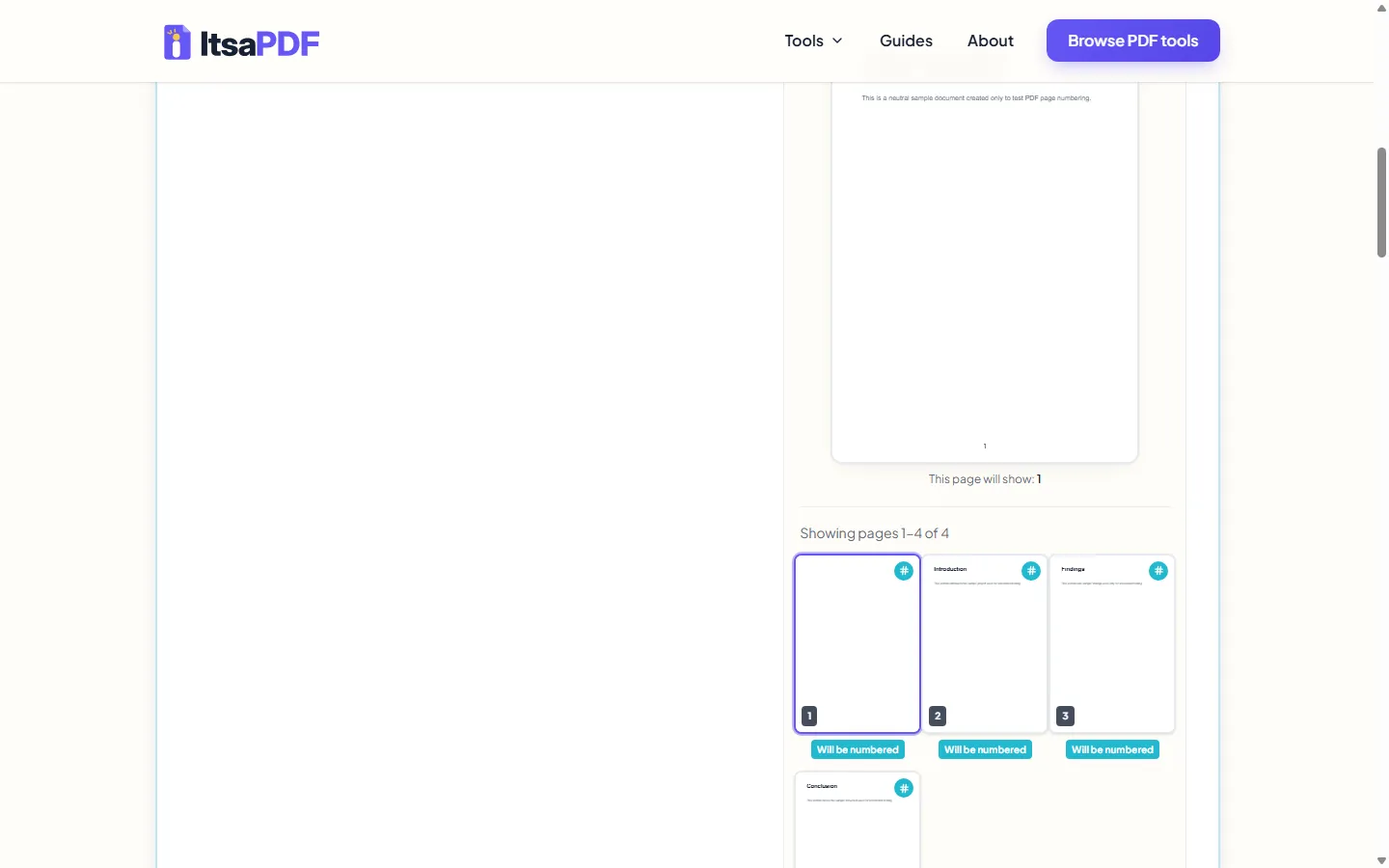
ItsaPDF's Add Page Numbers tool shows a live preview of the exact page you're about to number, so you can see the result before committing to it. Four things are adjustable: where the number sits on the page, how it's formatted, which page the count starts from, and what it looks like.
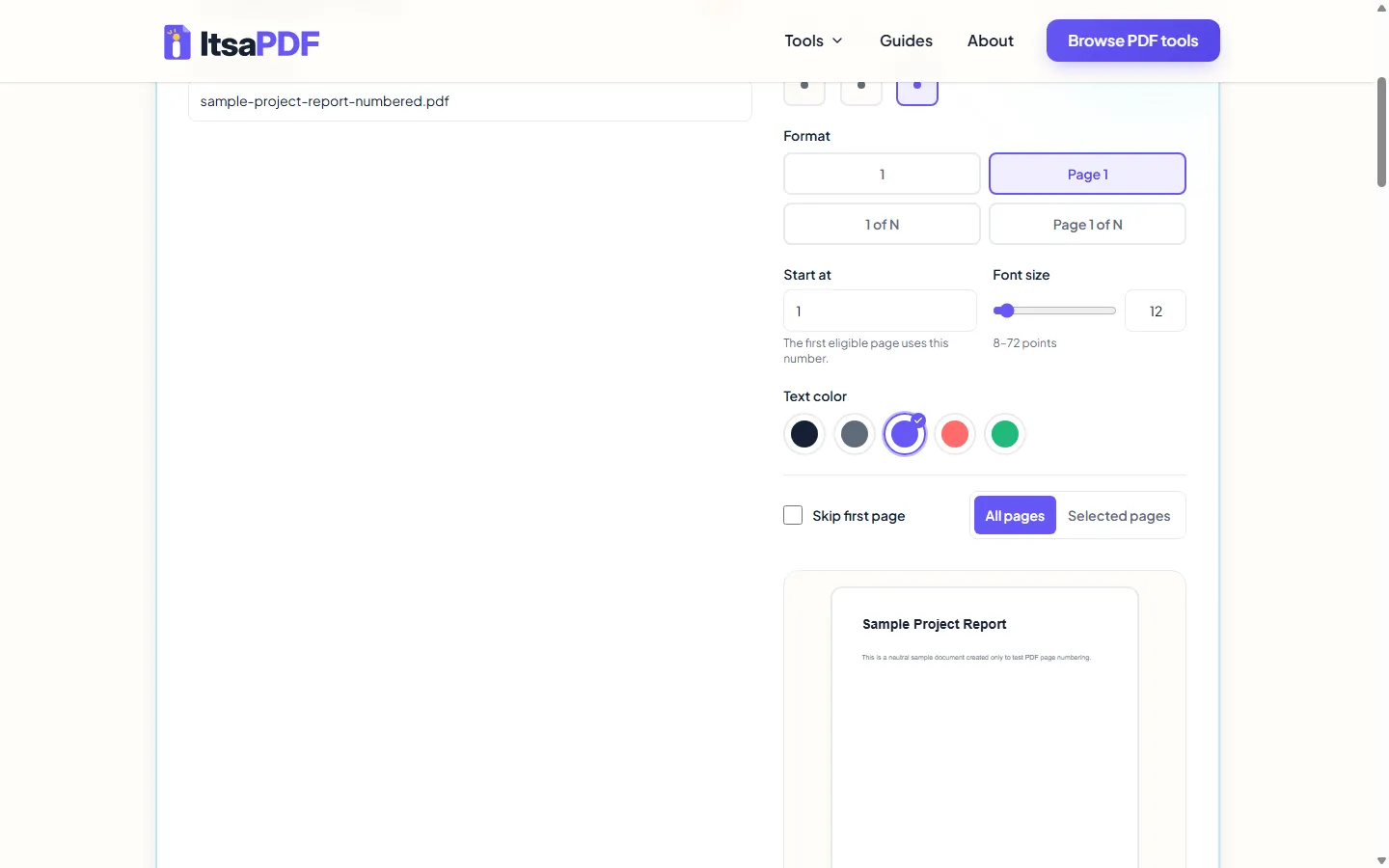
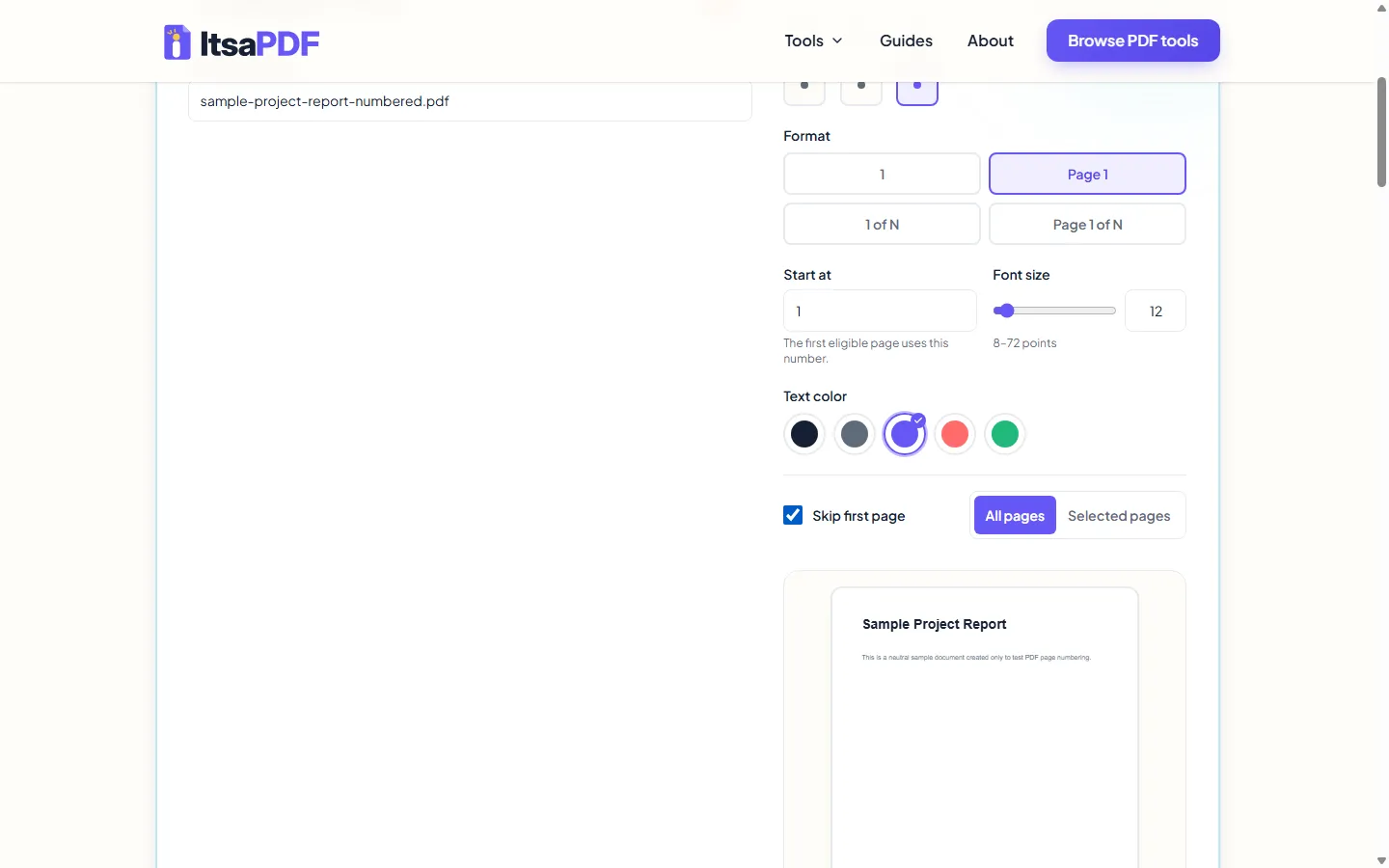
Position is a full grid — top, middle, or bottom, each paired with left, center, or right, for nine possible placements. Format has four options: a plain number, "Page 1," "1 of 12," or "Page 1 of 12," where the total automatically reflects however many pages actually end up numbered, which isn't always the same as the page count of the file you uploaded. Font size runs from 8 to 72 points, adjustable with a slider or by typing an exact value, and the number's color can be set to dark navy, gray, violet, coral, or green.
Step by step on desktop
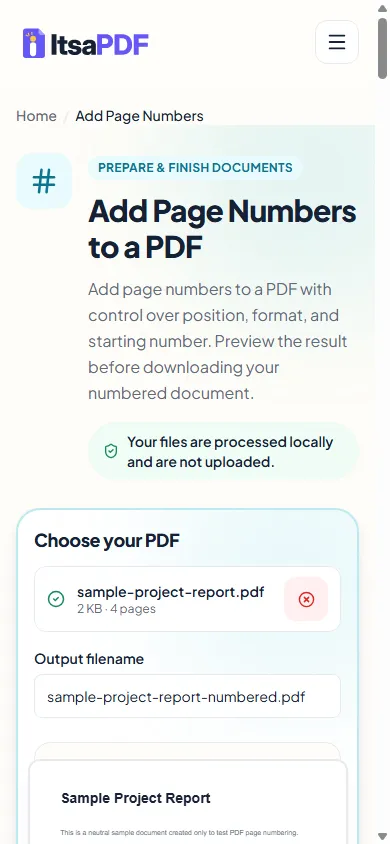
Open the Add Page Numbers tool and add your PDF — drag it onto the page or use the file picker. Once it's validated, a live preview of the first page appears alongside a thumbnail strip of every page in the document.
Choose a position and format from the panel, then check the preview to confirm it looks right. Adjust the starting number, font size, and color as needed — every change updates the preview immediately, so nothing is generated blind.
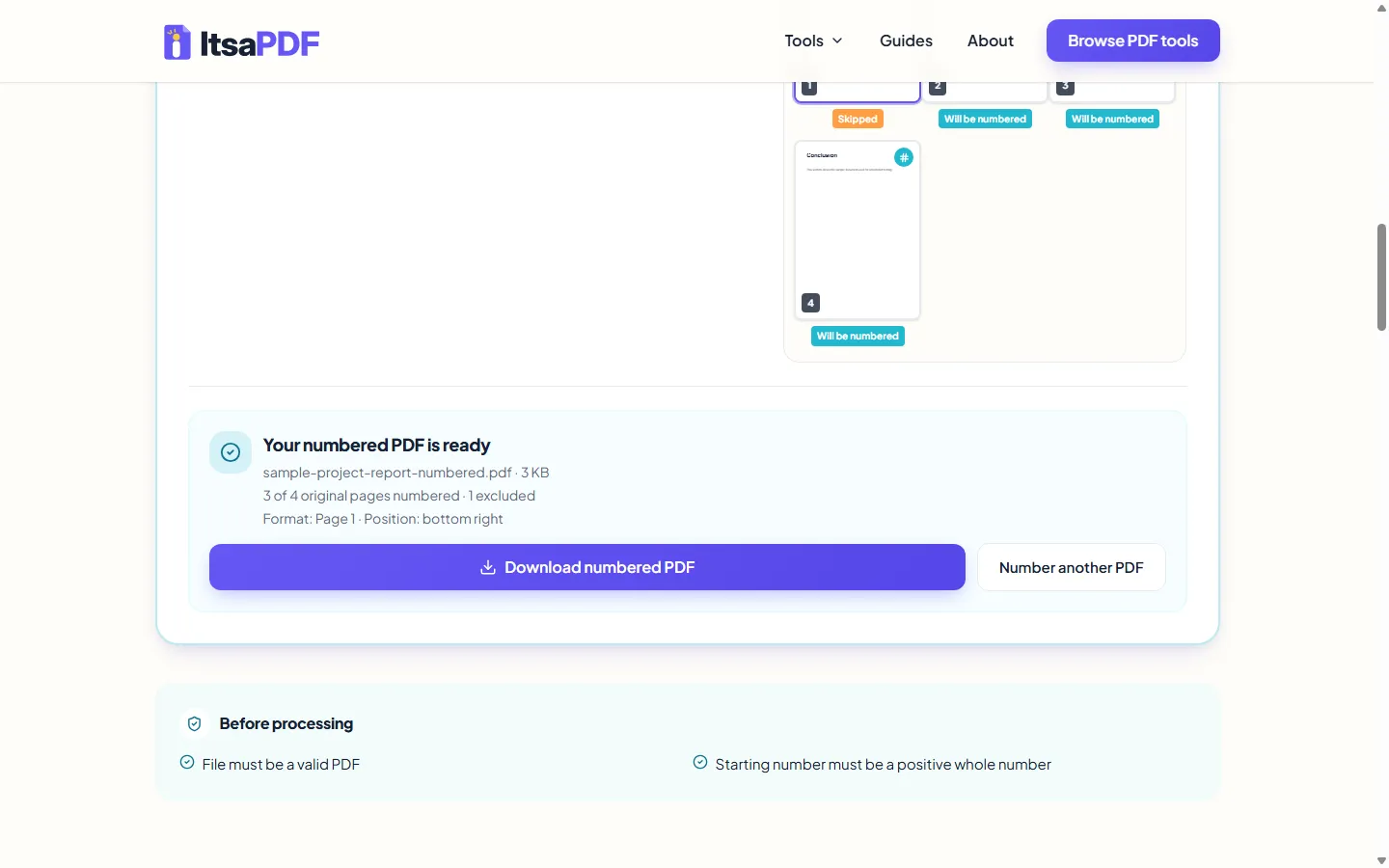
When you're happy with the settings, select the action button to begin. A progress indicator shows the current stage and how many pages have been processed. The original PDF is not overwritten; the numbered version is downloaded as a separate file.
Step by step on iPhone
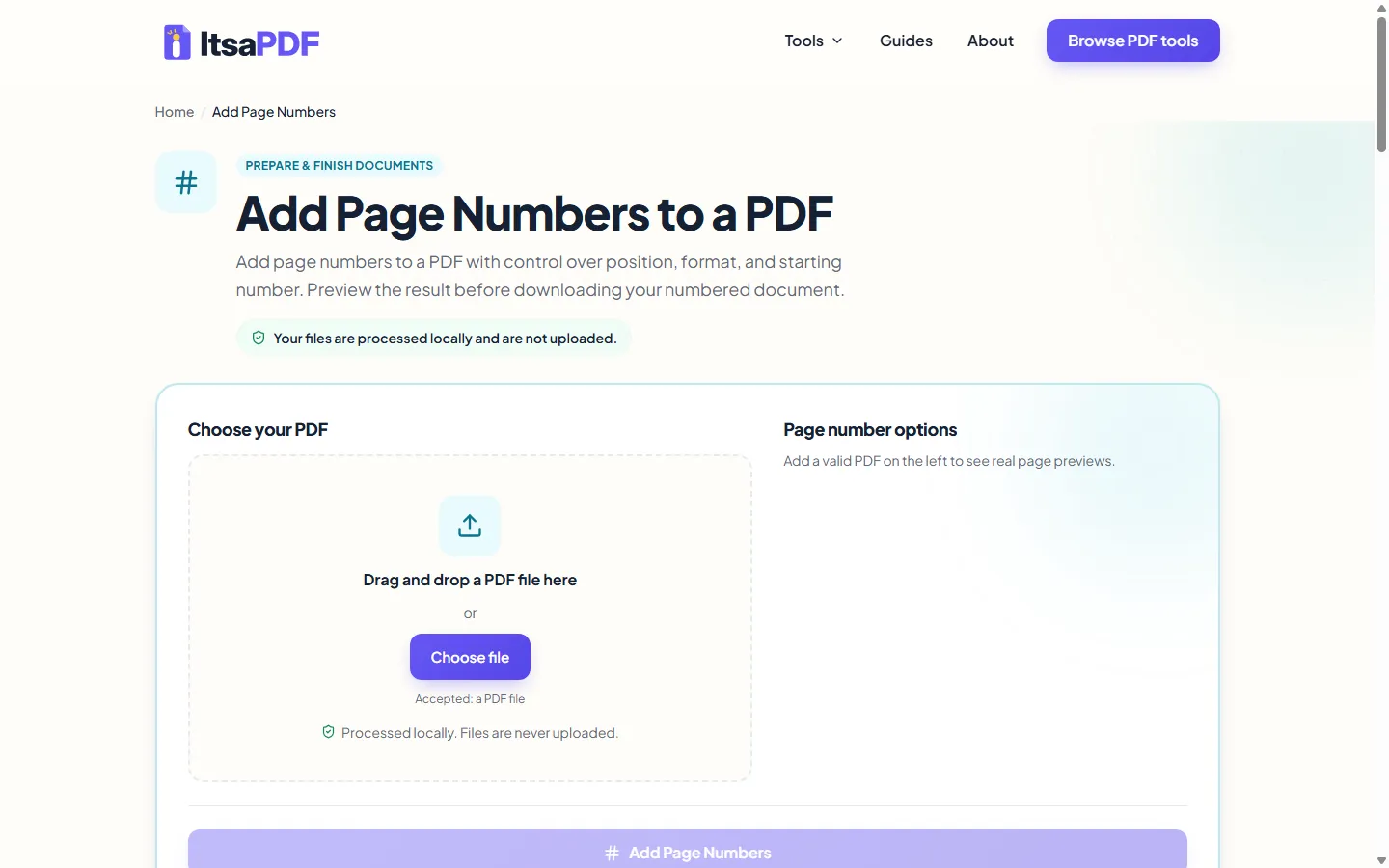
The tool works the same way in Safari or any other mobile browser, with no app to install. Tap the upload area to open the file picker, then choose your PDF from Files or from an app that shares into Files, such as Mail or a cloud-storage app.
The position grid, format options, and preview all work with touch the same way they do with a mouse — tap a grid position to select it, and tap through the thumbnail strip to check other pages. Once you're ready, tap the action button; Safari will typically prompt you to save the result to Files or offer a share sheet when it's done.
Step by step on Android
On Android, open the tool in Chrome or your default browser and tap the upload area to bring up your device's file picker. Select the PDF from your device storage, Google Drive, or another connected source.
Everything else works identically to desktop — tap a position on the grid, choose a format, and adjust the starting number, font size, or color as needed. When numbering finishes, your browser will save the result to your Downloads folder or prompt you to choose where to save it.
Numbering only selected pages
Not every document needs every page numbered. Switching the scope from "All pages" to "Selected pages" reveals a selection toolbar with Select all, Clear, and Invert selection controls, and the thumbnail strip becomes clickable for choosing individual pages.
This is useful for documents where only a section — an appendix, a chapter, or a set of exhibits — needs numbering, while a cover page or table of contents stays untouched. The result screen tells you exactly how many of the original pages were numbered and how many were excluded, so there's no guessing after the fact.
Skipping the cover page and choosing a starting number
Title pages and cover sheets usually shouldn't carry a visible "Page 1." The Skip first page toggle removes the very first page from numbering regardless of the scope you've chosen, so a cover page stays clean even if every other page is numbered.
The starting number controls what the first eligible page is labeled — not necessarily the number 1. If your document is part of a larger set and should pick up counting at page 45, set the starting number to 45 and the sequence continues from there across the rest of the eligible pages.
Skip first page and a custom starting number can be combined: skip the cover, then start the visible numbering at 1 on the page that follows, so the count matches the document's actual content rather than its raw page order.
Common problems and how to avoid them
The most frequent issue is forgetting to enable Skip first page, which results in a cover page showing "Page 1" when it shouldn't have a number at all. The live preview catches this immediately — check page one specifically before downloading.
Another easy mistake is switching to "Selected pages" scope and forgetting to actually select any pages; the tool disables the action button and explains why until at least one page is chosen. If a starting number or font size looks wrong, the input fields flag it directly rather than silently substituting a default.
If your file won't validate at all, the PDF may be damaged, incomplete, mislabeled as a PDF when it's actually a different file type, or password-protected. If the PDF is password-protected, open it with the password in a trusted PDF application and save an unprotected copy, provided you have permission to modify the document — ItsaPDF doesn't remove passwords itself.
Privacy and file quality
ItsaPDF does not send the PDF to a conversion server. The numbering operation uses the processing files already loaded by the page. Larger PDFs can still take longer to number, depending on the file's complexity and how much memory the device has available; closing unused browser tabs can help if a large file feels slow.
Page numbers are added as an overlay on top of each page rather than by flattening or re-compressing the document, so the existing content generally isn't intentionally altered. That said, it's worth reviewing the downloaded file before relying on it — especially if your PDF contains forms, annotations, links, signatures, unusual fonts, or other complex interactive elements, since these can be sensitive to any PDF-editing tool.
After the page resources have loaded, the numbering operation does not depend on uploading the document.
Related PDF tasks
If your document also needs pages removed, reordered, or combined with another file first, it's usually easiest to finish that work before adding page numbers, so the numbering matches the final page order. ItsaPDF's Delete PDF Pages, Reorder PDF Pages, and Merge PDF tools cover those steps using the same straightforward workflow. Once numbered, a watermark or a full header and footer are common next additions before sending a document out.