

How to Split a PDF Into Multiple Files
Splitting a PDF means turning one file into several smaller PDFs, each holding a subset of the original pages — the source document stays as it was, and the split pieces are new files you download separately. It's useful when a single PDF actually contains a few distinct documents, when only part of a long file needs sending, or when you want each page on its own. With ItsaPDF, the file is processed locally in your browser and no account is required.
How to split a PDF into multiple files
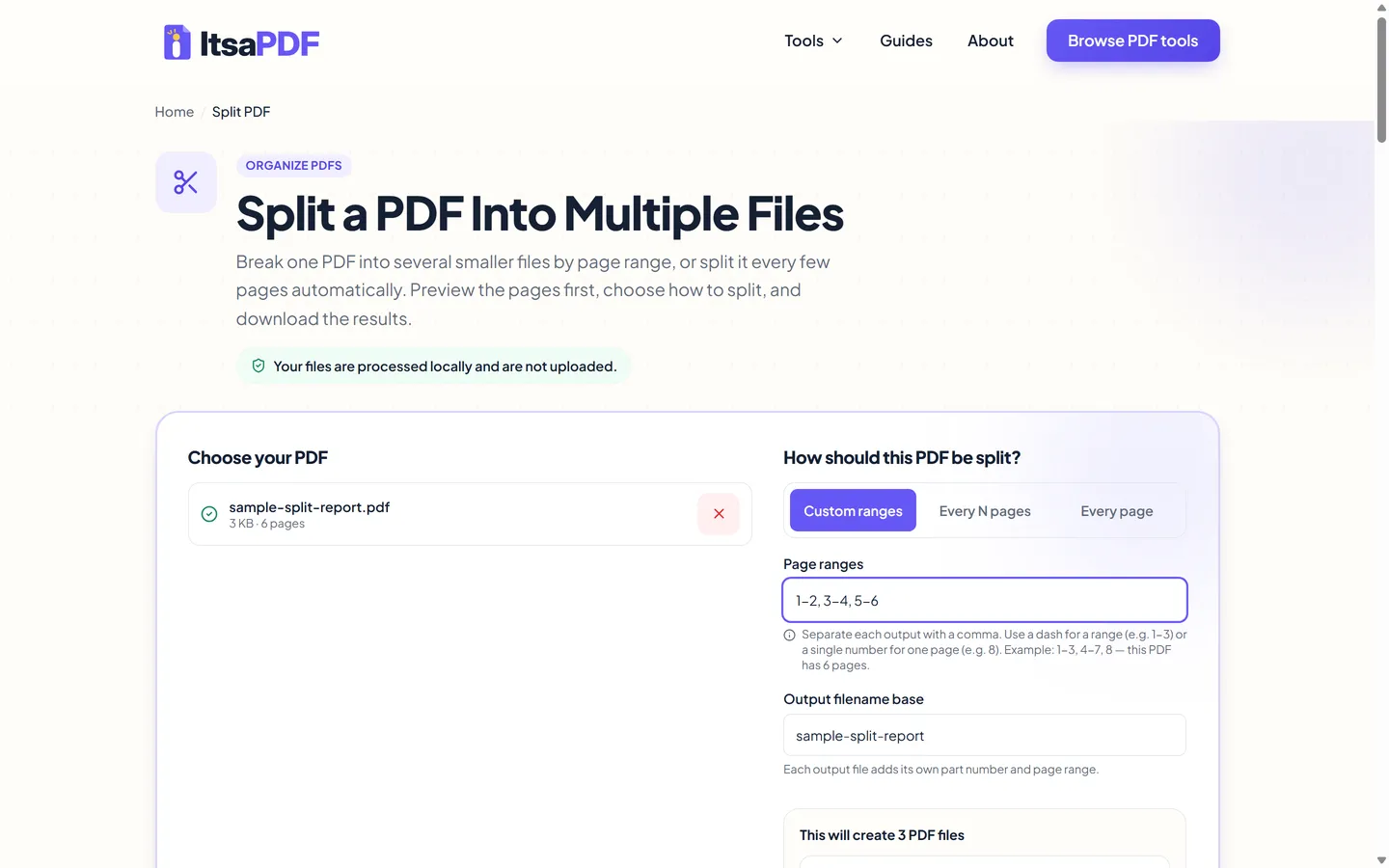
Open the Split PDF tool and add your file — drag it onto the page or use the file picker. Once it's validated, you'll see its page count and three ways to split it: custom page ranges, every N pages, or every page as its own file. Type a range or a page count, check the plan that appears below (it lists each output file and the pages it will contain), then select Split PDF. When it finishes, download the files individually or as a single ZIP.
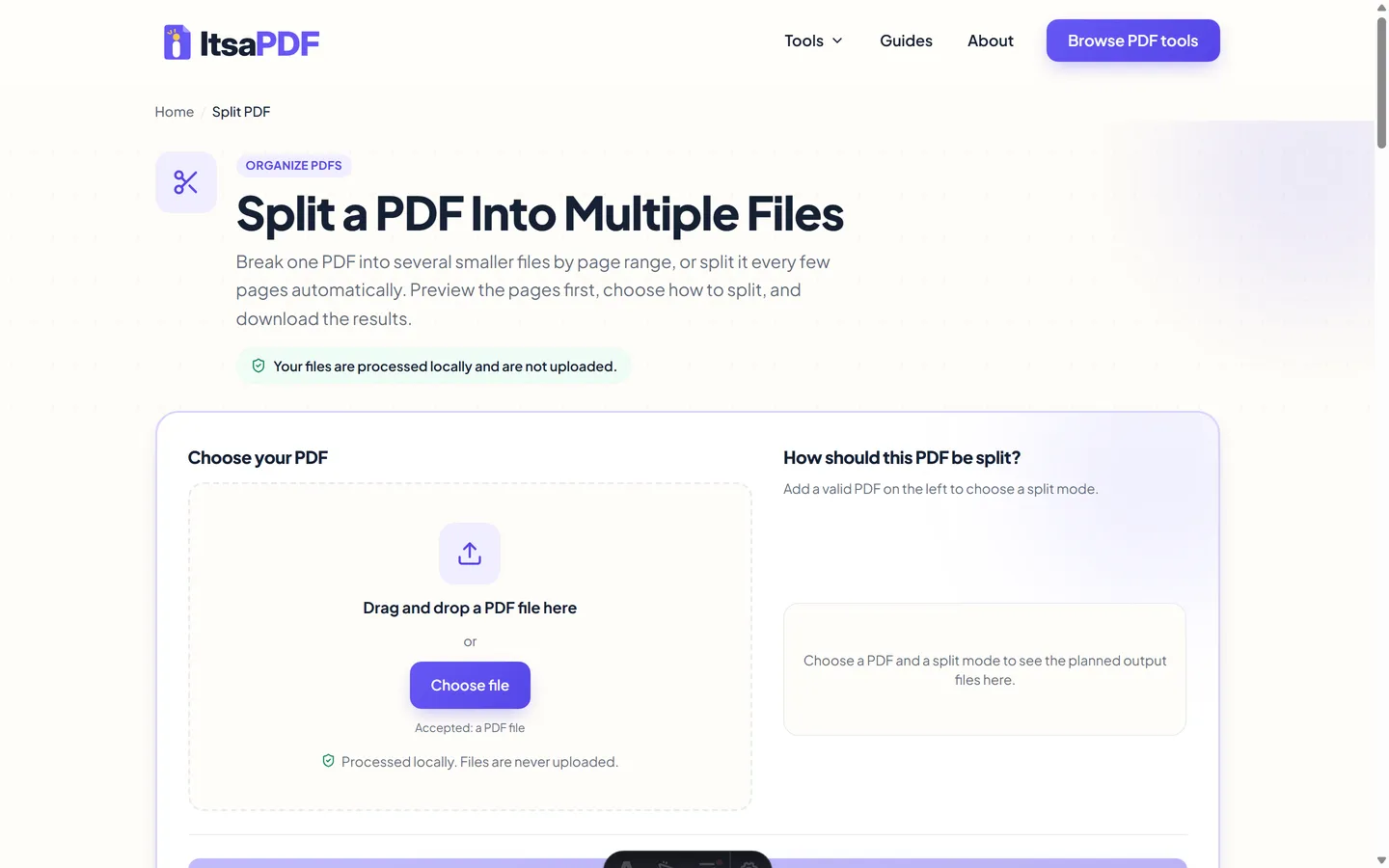
What splitting a PDF actually does
The original PDF is not overwritten. The split results are created as separate new files. What comes out is a set of brand-new PDFs, each built by copying a specific range of pages out of the original into its own document. A three-page range becomes a three-page file; a single page becomes a one-page file.
This is different from editing a PDF's content. Splitting only decides which pages go into which output file — it doesn't rearrange, delete, or modify what's on any individual page. If you need to remove pages entirely rather than separate them into their own file, Delete PDF Pages is the more direct tool.
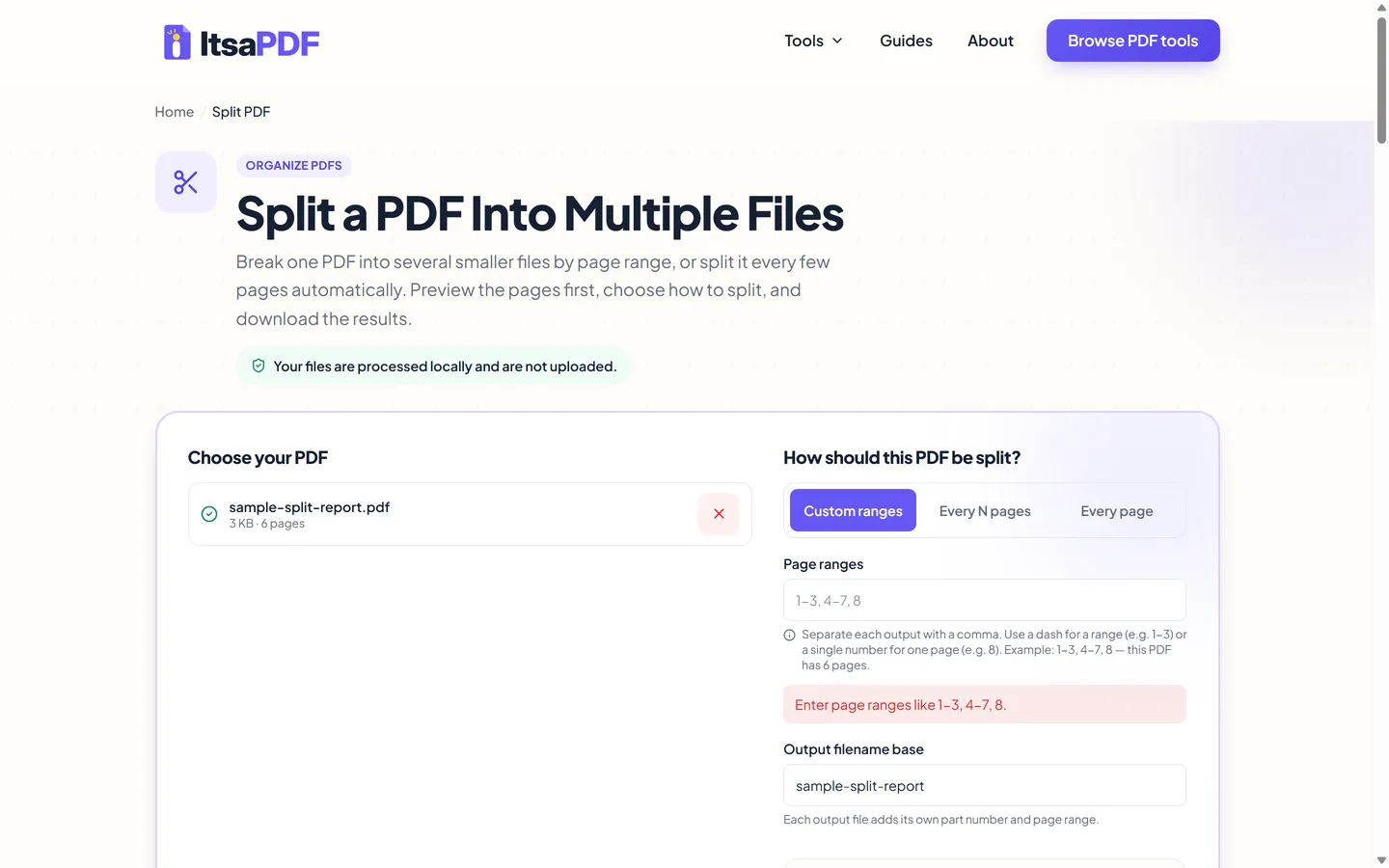
Split every page into a separate PDF
Choosing Every page turns each page of the source file into its own one-page PDF — a 12-page document becomes 12 separate files. There's no range to type; the tool shows the exact file count as soon as this mode is selected.
Each output filename includes its part number and page number, so a source called "report.pdf" produces files like report-part-1-page-1.pdf, report-part-2-page-2.pdf, and so on. With larger documents, this can mean a lot of files at once — download them as a ZIP rather than one at a time.
Split a PDF every N pages
Every N pages splits the document into consecutive files of a fixed length. Enter a positive whole number for pages per file, and the tool divides the document into that many pages per output, in order, from the first page to the last.
A 10-page PDF split every 3 pages creates four files: pages 1–3, pages 4–6, pages 7–9, and page 10 on its own — the last file simply holds whatever pages are left over, so it can end up shorter than the interval you chose. As with every other mode, the full plan appears before you split anything, so you can see exactly how many files this produces and which pages land in each one.
Split a PDF by page ranges
Custom ranges give you exact control over what goes into each output file. Separate each output with a comma, use a dash for a span of pages, and a single number for one page on its own — for example, 1-3, 4-7, 8 produces three files: a three-page file, a four-page file, and a one-page file.
The tool checks each range against the document's real page count as you type, and rejects anything that doesn't make sense — a range typed backwards (like 8-3), or a page number beyond the last page in the file. Ranges are also allowed to overlap, so pages 1-5 and pages 3-8 can both be used at once if you genuinely want page 3 through 5 to appear in two different output files; when that happens, the plan notes the overlap so it isn't a surprise.
Split versus Extract PDF Pages
These two tools solve related but different problems. Split PDF creates one output file for each range or group in the split plan — one range creates one file, while several ranges or repeated intervals create several files. Extract PDF Pages does the opposite: you select the pages you want, and everything you select is pulled into one single new file, with everything else left out.
As a rule of thumb, reach for Split PDF when you want several new documents out of one file — chapters, sections, or individual pages. Reach for Extract PDF Pages when you only want one new document made up of specific pages, like pulling ten pages out of a ninety-page report into a single handout.
Step by step on desktop
Open the Split PDF tool and add your file by dragging it onto the page or using the file picker. Once it validates, its page count appears next to the filename.
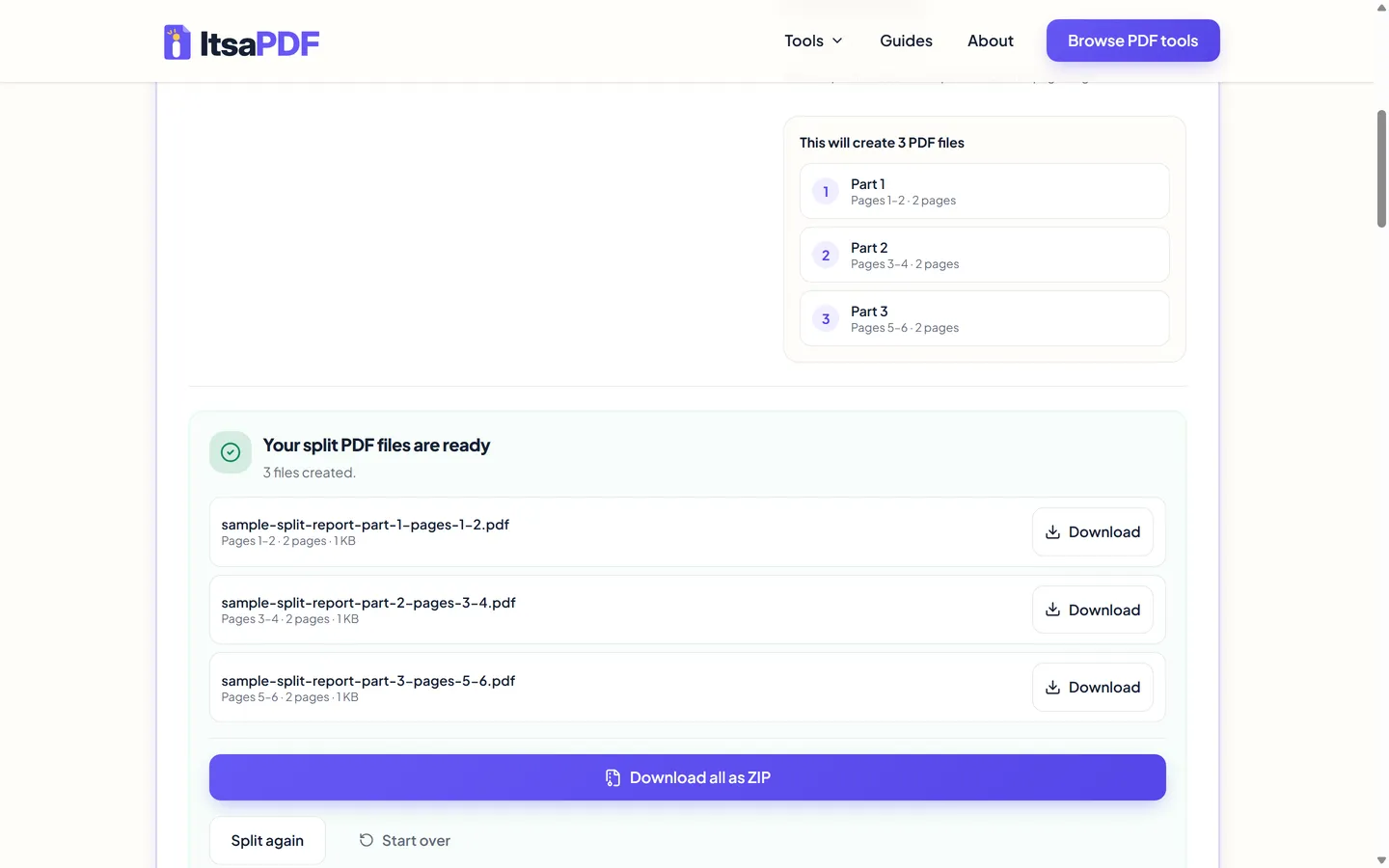
Pick a split mode — Custom ranges, Every N pages, or Every page — and fill in whatever it asks for. The panel below updates immediately, listing exactly how many files will be created and which pages go into each one, so you can check the plan before committing to anything.
You can also edit the output filename base; each file automatically gets its own part number and page range appended to whatever you type. When the plan looks right, select Split PDF. A status message tracks progress through validating, splitting, and saving, and downloads become available as soon as it finishes.
How to split a PDF on iPhone and Android
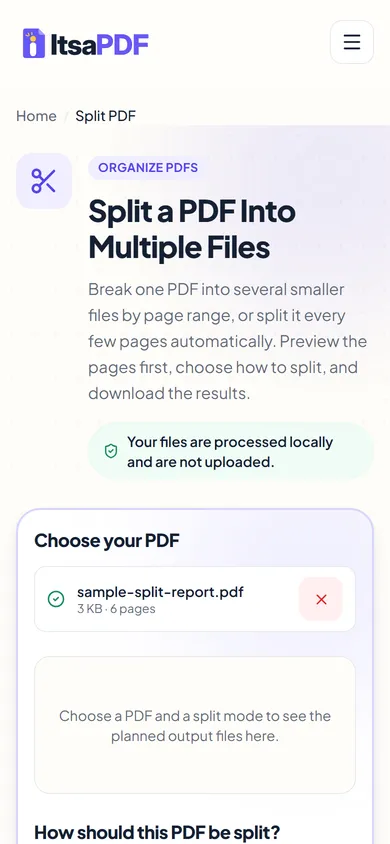
On iPhone, the tool works the same way in Safari or another modern browser, with nothing to install. Tap the upload area to open the file picker, then choose your PDF from Files or from an app that shares into Files. Once you've split the file, tap a Download button and Safari will typically offer to save it to Files or open a share sheet.
On Android, open the tool in Chrome or your default browser and tap the upload area to bring up the device's file picker. Choose the PDF from local storage or a connected cloud provider, then pick a split mode and split it the same way as on desktop. Downloaded files typically land in the browser's Downloads folder, though the exact save location depends on the browser and its settings.
Naming and organising the output files
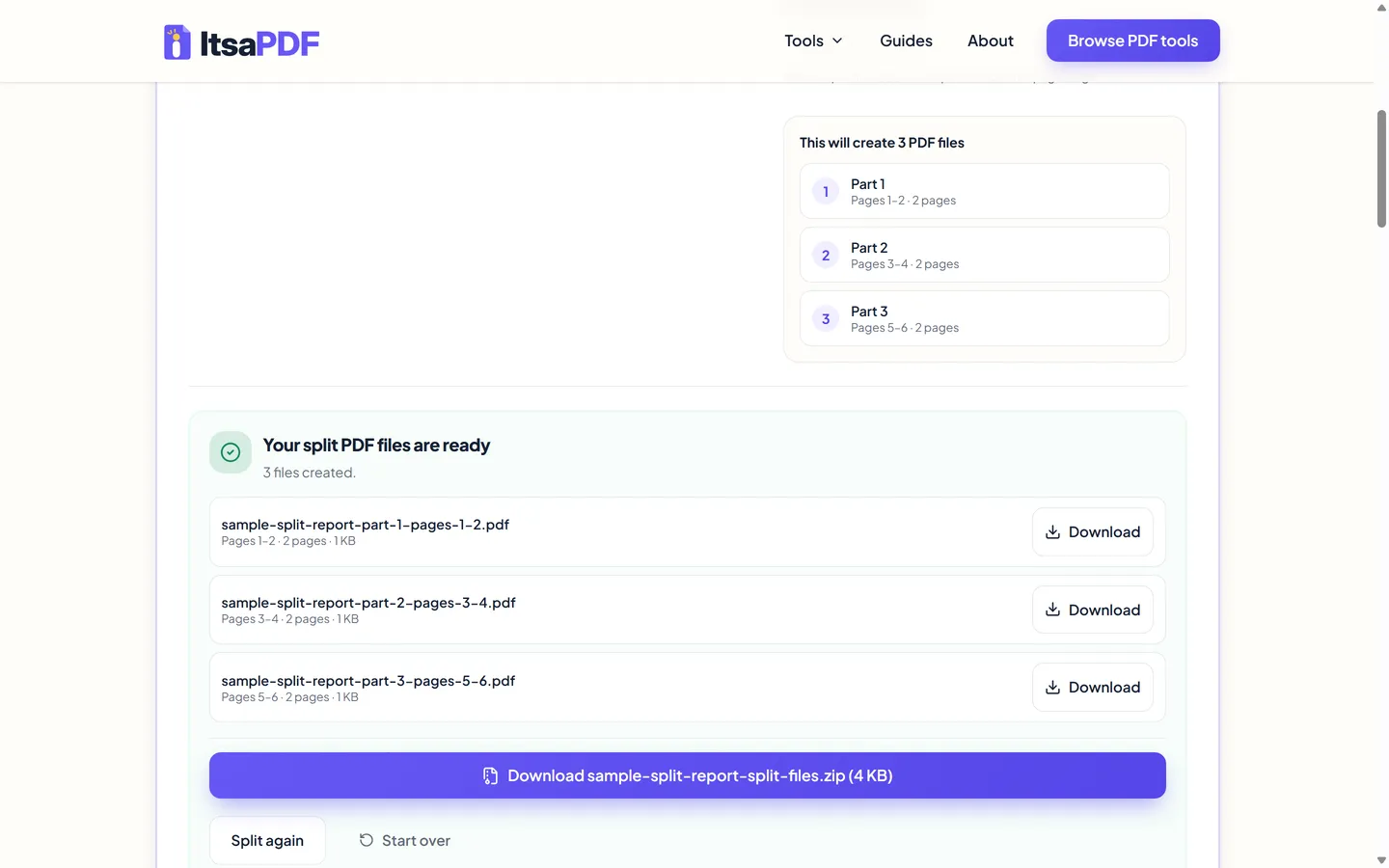
Every output filename is built from the base name field plus that file's part number and page range — for example, report-part-1-pages-1-3.pdf and report-part-2-pages-4-7.pdf. The base name defaults to your source file's name and can be edited before splitting; the part number and page range are always appended automatically, so filenames stay unique even if two ranges happen to cover the same pages.
Downloading as a ZIP keeps every output together in one file, named after the same base with "-split-files.zip" added. Since each filename already states its page range, checking that the pages ended up in the right file is usually just a glance at the file list rather than opening every PDF.
Common use cases
Splitting comes up most often when one PDF is really several documents stapled together. A scanned bundle of invoices can be split into one file per invoice; a long report can be divided into its main sections so a colleague only gets the part relevant to them; an appendix can be split away from the body of a document so it can be sent or filed separately. Scanned paper forms that were batched into a single PDF during scanning are another common case — splitting turns the batch back into individual, shareable files.
Common problems and solutions
A range can be rejected if its syntax is incomplete or malformed, if the page numbers are reversed, or if a page number is higher than the document's actual page count. Use commas between separate outputs, a single dash for a page span, and plain whole numbers for individual pages. The plan panel won't show a file count until the range is valid, so this is easy to catch before splitting.
If the file won't validate at all, it may be damaged, incomplete, or not actually a PDF despite the file extension. Password-protected PDFs are also not supported — open the PDF with its password in a trusted application and save an unprotected copy, provided you have permission to modify it, then select that copy in the Split PDF tool.
Splitting into a large number of files — Every page on a long document, for example — can use noticeably more memory on the device doing the work; a warning appears once a split is about to produce more than 20 output files. If a ZIP download fails to prepare, each file is still available to download individually from the results list.
Does splitting reduce PDF quality?
Splitting works by copying the selected pages into new PDF files rather than rasterizing or re-compressing them, so visible content is not intentionally altered in the process. That said, it's worth reviewing each output file before relying on it — PDFs with forms, annotations, links, signatures, unusual fonts, or other interactive elements can behave unpredictably with any tool that restructures pages, splitting included.
ItsaPDF does not send the PDF to a conversion server for splitting.
Related PDF tasks
If you only need a handful of pages pulled into one new file rather than several separate files, Extract PDF Pages is the better fit. Reorder PDF Pages helps clean up a document before or after splitting, and Merge PDF can put split files — or any other PDFs — back together into one document later.